
Silk Mobile
Table of Contents (Homepage)
- Overview
- Setting Up
- Getting Started
- How To
- Connecting Devices And Emulators
- Preparing Applications For Testing
- Managing Applications
- Recording Tests
- Working With Test Commands
- Adding Commands To Your Scripts
- Object Commands
- Click
- ClickCoordinate
- ClickIn
- ClickOffset
- Drag
- ElementGetProperty
- ElementGetTableRowsCount
- ElementListPick
- ElementListSelect
- ElementListVisible
- ElementScrollToTableRow
- ElementSendText
- ElementSetProperty
- ElementSwipe
- ElementSwipeWhileNotFound
- GetAllValues
- GetElementCount
- GetElementCountIn
- GetTextIn
- IsElementBlank
- IsElementFound
- IsFoundIn
- LongClick
- RunNativeAPICall
- SendWhileNotFound
- VerifyElementFound
- VerifyElementNotFound
- VerifyIn
- WaitForElement
- WaitForElementToVanish
- GetCoordinateColor
- DragDrop
- Application Commands
- Device Commands
- Web (Hybrid) Specific Commands
- Utilities Commands
- Monitoring Commands
- Configuration Commands
- ExtractLanguageFiles
- SetDefaultClickDownTime
- SetDefaultTimeOut
- SetDefaultWebView
- SetDragStartDelay
- SetInKeyDelay
- SetKeyToKeyDelay
- SetLanguage
- SetLanguagePropertiesFile
- SetShowImageInReport
- SetShowPassImageInReport
- SetShowReport
- SetSpeed
- SetThrowExceptionOnFail
- SetWebAutoScroll
- StartStepsGroup
- StopStepsGroup
- TextFilter
- Miscellaneous Commands
- Controlling Element Identification Rules
- Editing Test Objects
- Executing Test Scripts
- Report Of Executed Test
- Working From Code Environment
- Continuous Integration
- Layout Verification Tests
- Use Device Vitals Monitors
- Troubleshooting
- Terminology
Native Recording
The Native Recording mode is using the Native properties of elements on the screen. It can be used for instrumented applications. Also there is the possibility to record on non-instrumented mode.
To record a script in the Native Recording mode:
Step 1: Get ready for the recording.
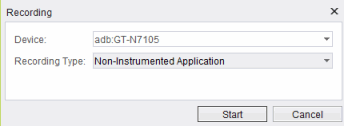
Step 2: On the Recording dialog box now displayed, set the following parameters:
-
Device to be recorded.
-
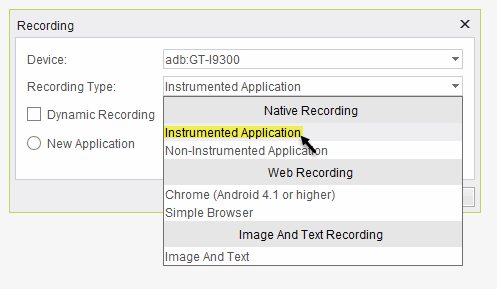
Recording Type: for Native recording, select:
-
Instrumented Application
-
Non-Instrumented Application
-
Step 3: Click the start button.
Step 4: Perform the actions to be recorded on the reflection of the device.
Some recommendations regarding the recording:
-
Click the center of the image/icon/link
-
Record slowly
Step 5: Once recording is completed, click the stop record button
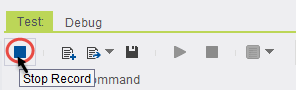
You will see a progress bar indicating that the record data is being analyzed, and the test script will then appear in the Script area.
Note: The script you recorded can later on be edited. (For instructions on how to edit, see the "Edit Test Commands" & "Edit Test Objects" section in the guide).
Step 6: Click the Play button to run the script.
Instrumented Application option
This option enables you to perform recording on instrumented Application.
Fields for this option:
-
Dynamic Recording - check box field
-
If checked:No elements will be extracted to Object repository during recording.
-
If not checked: All elements used during recording will be extracted to object repository.
Both image recognition and Native recognition will be enabled for the Element.
-
-
New Application \ Current Application radio button
New Application option enables you to choose any of the application available on the Application manager list which suits the device to record with.
The application will be instrumented as part of the recording preparation.
Current Application option enables you to continue recording with an already instrumented application running on the device.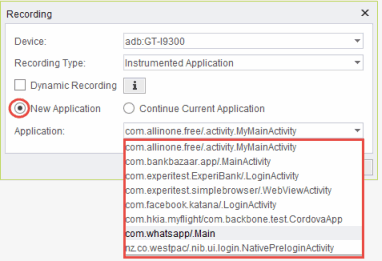
|
|
|
|
|




Example:
We choose to record on an android device with the Ebay application.
Application will be instrumented before recording all elements will be extracted to repository during the recording.
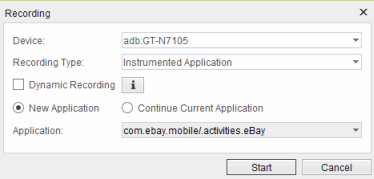
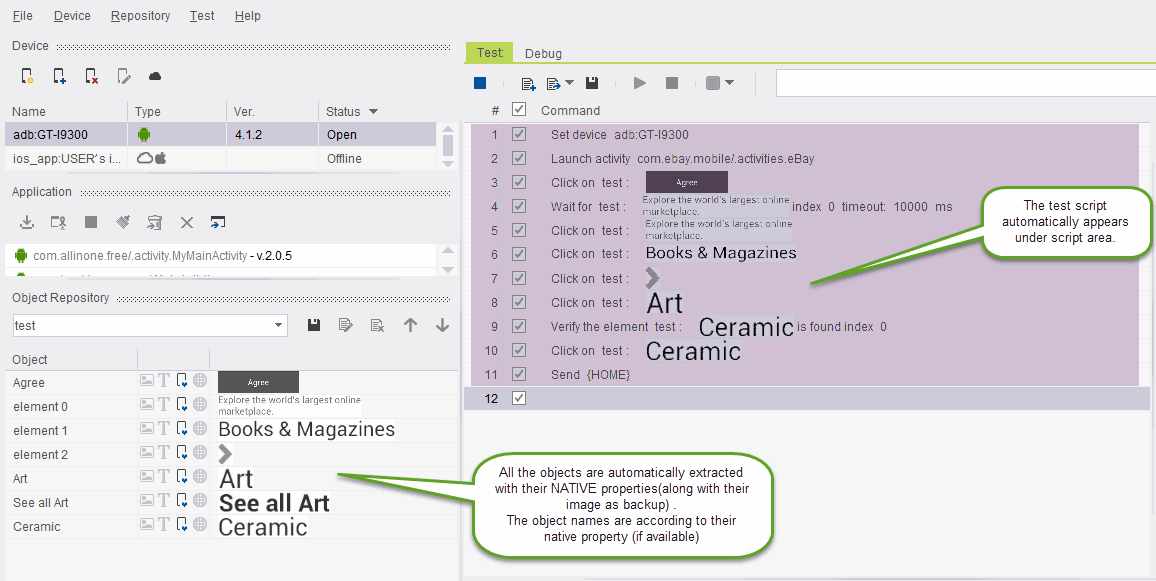
Note: The second step (after setting the device under test) is launching the instrumented application and it was automatically added.
Non-Instrumented Application option
This option enables you to perform recording on non-instrumented Applications such Settings of device, system applications etc.
|
|
|
|
Example:
Test recorded on the Android device settings.
Test is dynamic by default and uses xpath to identify the elements.
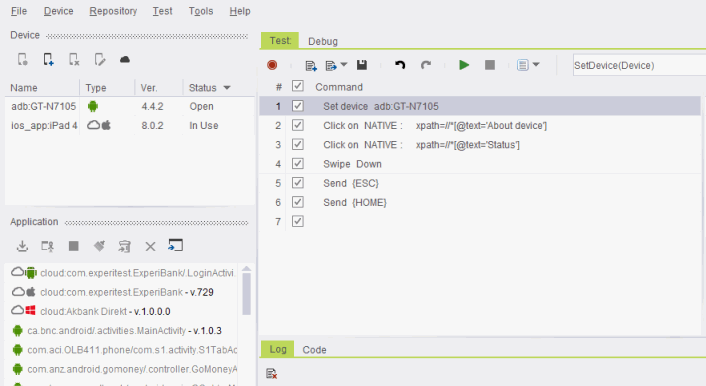
Step 7: The application will then be launched on your device. Go to the device reflection appearing on your computer screen, and do the exact sequence of actions you want in the test.
Some recommendations regarding the recording:
-
Click the center of the image/icon/link
-
Record slowly
-
Step 8: Return to Silk Mobile and click on the "stop recording" button.
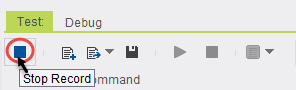
You will see a progress bar indicating that the record data is being analyzed, and the test script will then appear in the Script area.
-
The script you recorded can later on be edited. (please refer to the "Edit Test Commands" & "Edit Test Objects" section in the guide for instructions on how to edit)..
-
The second step (after setting the device under test) is launching the application in instrumented mode, and it was automatically added.
Step 9: Click the Play button to run the script.